

How to quickly reset & clear your OneDrive cache
Need to clear OneDrive cache on your Mac? Then you probably noticed something feels off. Storage is disappearing. Sync is crawling. Files you deleted weeks ago still seem to exist somewhere.
OneDrive cache quietly builds in the background. It does not delete your real files; those stay in the cloud, but it can slow everything down. The good part is this: clearing it is safe and takes minutes if you do it properly.
What is OneDrive cache?
OneDrive cache is basically temporary sync data, file metadata, and local copies that help with offline access. It exists to speed things up, but the problem is, it keeps accumulating, so every time you upload a document, edit something, resolve a conflict, or rename a file, OneDrive writes new cache entries. You won’t find these files, nicely labelled in Finder; they’re hidden in your Library folders.
If you sync large files or collaborate often, the cache can grow to several gigabytes. I have personally seen 4 GB sitting there unnoticed. If you move media files daily or constantly resolve conflicts, your cache grows much quicker than someone syncing light documents.
Corrupted cache entries can also cause repeated sync failures.
When to clear OneDrive cache
These are all signals that it’s time to jump into action with OneDrive's clear cache.
-
Syncing takes significantly longer than usual (sometimes hours)
-
Constant freezing or crashing
-
When “can’t upload” or “can’t download” errors keep appearing
-
If storage reports show unexpected usage
-
If I have not cleared it in six months
-
After a major macOS update.
How to clear OneDrive cache manually
This is the manual method to clear cache safely.
-
Quit OneDrive completely from your top menu bar (don’t just close the window).
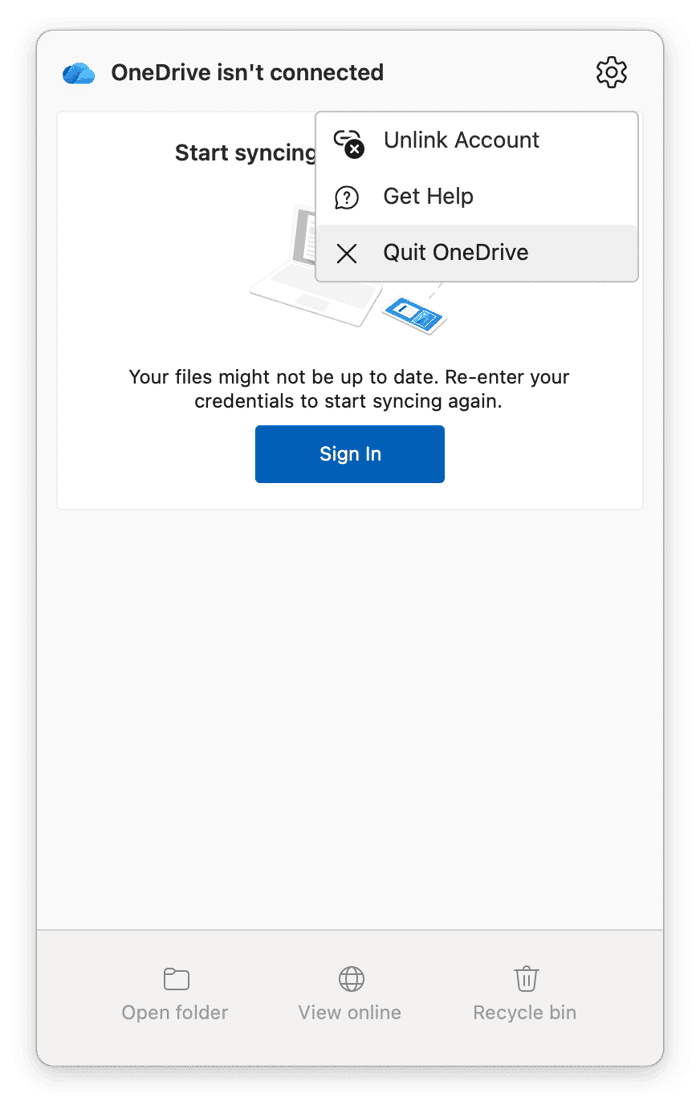
- In Finder, press Shift - Command - G and enter the following two pathways:
~/Library/Containers/com.microsoft.OneDrive/Data/Library/Caches
~/Library/Application Support/Microsoft/Office/OfficeFileCache - Delete the contents of those folders and empty your trash.
- Now restart OneDrive.


The first sync may take five to ten minutes while it rebuilds a fresh cache. That is normal. Files are not lost. They reindex.
This is the method I trust because I can see exactly what I am removing.
How to clear OneDrive cache automatically
The manual method above works, but it does require navigating around in hidden folders. If you’re not a fan of this, then you can use a tool like CleanMyMac instead; it automates this with one click, thanks to its Applications feature.
When you reset OneDrive, its cache is removed instantly without navigating system folders. Here’s how:
-
Open CleanMyMac — get your free trial here (free for seven days).
-
Open and click Applications > Scan.
-
Click Manage My Applications.
-
Find OneDrive in the list, click an arrow (>) next to it..
-
Select everything except Binaries and hit Remove.

Automated tools scan every related cache path at once. You avoid missing folders. Results are immediate.
What clearing cache does (and doesn’t) affect
Lots of users feel nervous about removing cache, so let’s quickly confirm what clearing cache does and does not affect.
-
Clearing the cache only removes temporary sync data, metadata, and conflict records.
-
It does not delete your actual OneDrive files. (Those remain in the cloud and in your synced folder.)
-
It does not erase version history.
-
It does not remove shared folders.
After the process, performance usually improves; you should notice that syncs feel faster, app responsiveness improves, and you can often reclaim one to five gigabytes instantly.
Troubleshooting if cache clearing doesn’t solve the problem
Sync still slow
This could be network-related, not cache. Check the Microsoft server status and restart your own Wi-Fi.
OneDrive keeps crashing
Reinstalling the app can help. Occasionally, compatibility issues appear after system updates.
Cannot find the cache folders
Make sure hidden files in Finder are findable, press Command - Shift - Period.
Can’t delete
Make sure OneDrive is fully quit and check folder permissions.
Cache is accumulating very fast.
You may have a sync loop. Resolve file conflicts inside OneDrive settings first.
Continued glitches
If nothing seems to help, it would be a performance issue interfering with sync. Use the Performance and Cleanup features from CleanMyMac to optimize your overall Mac performance. These two powerful tools can clear system cache, resolve app conflicts, and even free RAM, often resolving sync problems that aren’t directly caused by OneDrive cache alone.

Prevent excessive cache buildup
Here’s a checklist I try to stick to, which helps to prevent cache buildup:
-
Clear OneDrive cache roughly every three months.
-
Resolve sync conflicts immediately instead of ignoring them.
-
Keep at least 10-15% of free disk space on your device. Low storage stresses caching systems, monitor this regularly to avoid surprises.
-
Update OneDrive regularly.
-
If storage remains tight, I reduce the number of synced folders.
Run the Smart Care feature from CleanMyMac every few weeks. This will keep on top of OneDrive cache, remove other app caches, and optimize your device storage, helping to keep your device healthy so syncing remains smooth without manual intervention; here’s how:
-
Open the app and select Smart Care > Scan.
-
Select tasks to run.

Now you know how to clear OneDrive cache.
Frequently asked questions
Why might OneDrive behave erratically even after clearing its cache?
If the app configuration or preference files are corrupted, problems can persist after cache removal. In such cases, resetting or reinstalling OneDrive may be necessary.
Does OneDrive cache include sign-in credentials or just sync data?
The main cache folder holds sync metadata and temporary data, but your Mac’s Keychain may also store authentication tokens that act like cached credentials, affecting login behavior.
Does OneDrive cache building depend on how many files you sync?
Yes, syncing large numbers of files, especially small ones, can generate a larger local cache because OneDrive tracks metadata and status for each item.