

Fix Gmail not working on Mac: Deal with 5 common problems
Gmail not working on Mac? It feels weirdly urgent. No warning, no helpful pop-up, just emails that will not load, send, or attach.
On my Mac running macOS Tahoe, I’ve found Gmail failures usually come from a handful of root causes like authentication glitches, server connection issues, Mail app conflicts, or permissions and storage problems. The annoying part is that you can waste an hour troubleshooting the wrong fix.
The good news is that most Gmail fixes only take minutes, not hours, once you identify the specific scenario. Below are the five steps I use for login, sending, attachments, and setup.
Why is Gmail on Mac not working?
Before you change anything, ask yourself three questions:
-
Can I log in to Gmail in a browser?
-
Can I send from the browser but not from Mail?
-
Am I seeing Gmail not working on Mac error 400 in the browser?
If Gmail works online but not in Mail, it’s usually a Mac-side issue. If it fails everywhere, I check Google’s service status to rule out outages. I also test my connection by loading a few other sites. This small step saves a lot of random troubleshooting.

Most Gmail issues fall into five categories: login, server connection, sending, attachments, or account setup. Once I know which one I have, the fix becomes obvious.
How to fix login problems
Repeated password prompts or incorrect password errors often indicate authentication issues.
1: Test your password at gmail.com first.
If it works there, the password is not the problem.
2: If you have 2FA set up, then Mail may need an app password instead of your main Gmail password.
3: Delete then re-add your Gmail account to Mail.
-
Mail > Settings > Accounts > select Gmail > Remove (the ‘-’ button).
-
Then, add Accounts + and sign in again.
4: If you can log in, but you keep getting prompts, close Mail fully. Restart your Mac and reboot.

Constant login loops could be due to cache or preferences corruption. The Applications feature from CleanMyMac can clear stored Mail files and reset the Mail app altogether:
-
Open CleanMyMac — get your free trial here (7 days free).
-
Click Applications > Scan > Manage My Applications > Uninstaller.
-
Click an arrow next to Mail, select everything except Binaries, and click Remove.
This way, you can reset any app that misbehaves (including the preinstalled ones).
Can’t connect to Google
If Mail shows connection timeouts or an endless 'Connecting' loop, you can bet it’s server-related.
1: Go to Mail > Settings > Accounts. If it shows Google IMAP, the setup is good. If it’s something different, remove the entire account,then add it again to force a fresh connection.
2: Your Firewall could be interfering; here’s how to check:
- System Settings > Network > Firewall > Options.
- Make sure Mail is allowed.
3: Turn off your VPN just temporarily. If Mail starts working, you’ve found the issue.
4: Remove and re-add the account to force a fresh server connection.
What to do when you can’t send emails?
Messages sitting in your Outbox are usually due to SMTP configuration issues, cache corruption, firewall blocks, or 2FA problems. First, Force-Quit Mail and reopen it.
1: Check SMTP settings:
- Mail > Settings > Accounts > Gmail > Server Settings.
- Under Outgoing Mail Account (SMTP), confirm it is set to Google.
2: Open Keychain Access, search Gmail or Google, and remove outdated Mail password entries. Restart Mail and re-enter credentials.
3: If two-factor authentication is active, use an app password.
Emails that can’t send could be down to corrupted cache. Use the CleanMyMac Cleanup feature to remove temporary system junk:
-
Open CleanMyMac.
-
Click Cleanup > Scan > Clean.

Can’t attach files or add the account
Can't select files to attach? Or errors when attaching can be a number of things; here’s what to try.
1: Check available disk space in System Settings > General > Storage.

2: Check that the file size is under 25MB (which is Gmail's attachment limit)
3: Drag files directly from Finder into your email window; don’t use the attachment button.
4: Restart Mail to force a refresh.
Can’t add Gmail account to Mail app
Can’t add an account, or it adds but will not sync? This happens when 2FG isn’t enabled, or a firewall is blocking setup.
Make sure you first check in your online Google Account that 2FA is configured, and create an app-specific password.
1: Mail > Settings > Accounts > Gmail > Remove. Press Add Account > Google and enter the app password.
2: Check your Mac’s firewall settings and allow Mail during setup.
3: Try adding the account on another device to confirm it’s not an account-level issue.
How to prevent Gmail from not working on Mac?
-
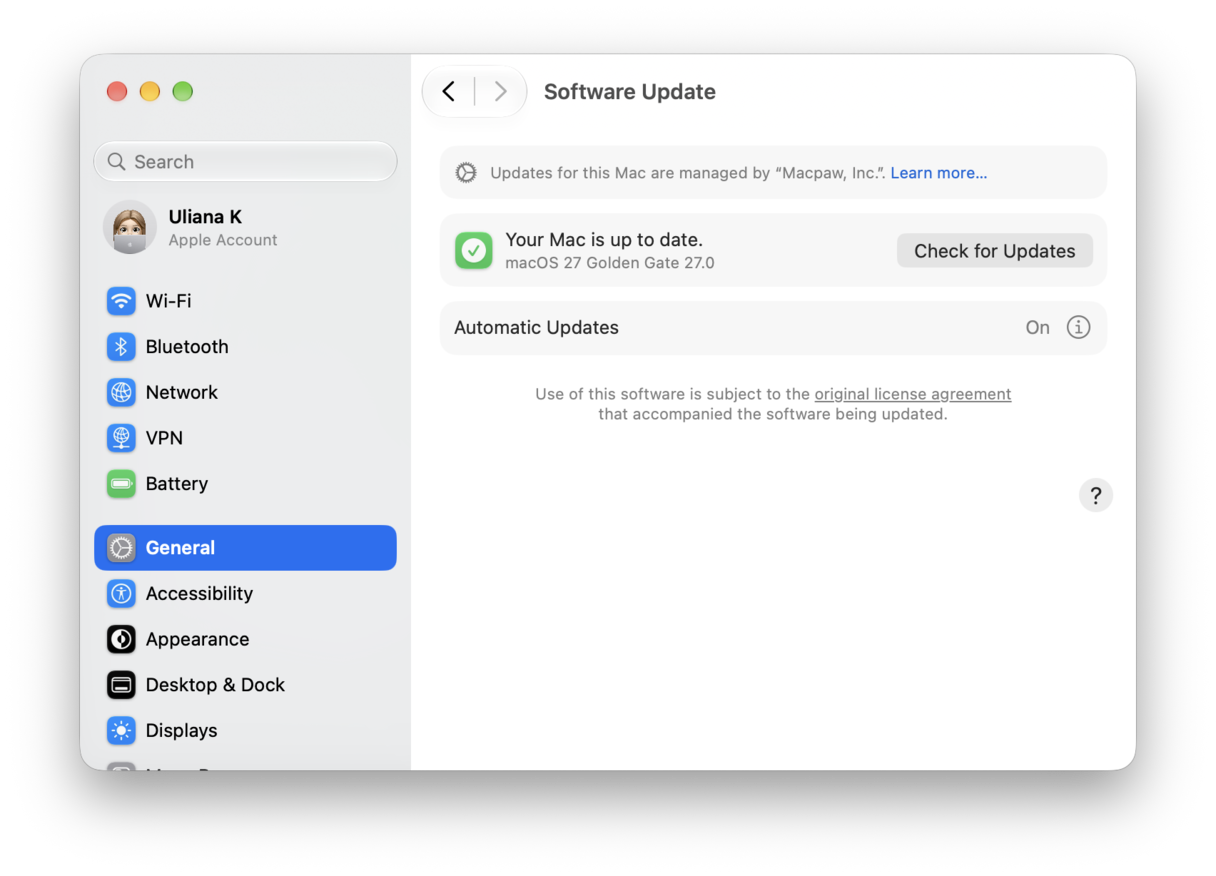
Always keep your macOS updated.
-
Avoid force-quitting Mail unless it’s completely frozen.
-
Keep two-factor authentication and app passwords current.
-
Maintain around 10-15% free disk space.
-
Restart Mail monthly to refresh connections.

Prevent Gmail issues before they start by maintaining your Mac’s health through regular cache clearing. Smart Care is a great option from CleanMyMac. It automates maintenance, clearing Mail's accumulated cache, removing temporary files, and preventing the app slowdowns that trigger Gmail connection issues.

Another great tool from CleanMyMac is Email Cleanup — it can help you declutter shared Google storage. Once you connect your Gmail account and run a scan, make your way through all the clutter: spam, newsletters, promotions, drafts, and old messages. You can also see the messages with the largest attachments. Select what you no longer need and click Move to Trash.
If you run out of Google storage, you might not be able to send and receive emails until you reclaim some or upgrade your Google One plan, so why not take a few minutes to get rid of unneeded messages? Do not forget to empty Gmail Trash; otherwise, deleted emails will stay there for 30 days.
Now you know what to do if Gmail is not working on a Mac.
Frequently asked questions
Why might Gmail load in my browser but fail entirely on my Mac Mail app?
Most frequently, it happens if the Mail app’s authentication or connection methods (like OAuth or IMAP) conflict with browser-based sessions.
Is it possible for macOS itself to trigger Gmail connectivity problems?
Sometimes, it happens. macOS updates might change authentication or networking behavior that affects Gmail until a patch or further configuration fixes it.
What should I check if Gmail won’t load only in one browser on Mac?
This one is an easy fix: clear the cache and test in incognito mode. If these do not work, disable the extensions — some of them may be preventing the proper work of Gmail.