

The ways to fix Mac download problems with files
I’ve seen so many threads lately on why my Mac is not downloading files. I've experienced this a few times, too. Sometimes the download never starts. Sometimes it vanishes. So I’ve put together a quick, practical flow that I use to diagnose the culprit in minutes and get files moving again.
Mac not downloading files: Is it you or the Internet?
First up, before you do anything, run these quick internet checks.
1. Run a speed test
Open a speed test site and run a quick check. If ping is huge or download speed is crawling, that is the first clue.

2. Is the source down?
If the problem is with Apple servers or a specific site, every Mac will fail. Try any other site or a different file host to rule that out.
3. Second browser test
If Safari fails, try the same URL in Chrome or Firefox. If one works and the other does not, you are looking at a browser problem, not your Mac.
If your connection is working, but it feels really painfully slow, use the Performance feature from CleanMyMac to flush the built-up DNS cache. This can often resolve "server not found" errors that prevent downloads from starting; here’s how:
-
Open CleanMyMac — get your free trial here.
-
Click Performance> Scan > View All Tasks.
-
Select Flush DNS cache > Run.

The storage trap: Why "free space" isn't always available
Big downloads often need room to unpack. A 3 GB installer can easily need 6 GB of space while it expands. This often catches users out. Here’s a reminder on how to check your storage:
-
Check space: System Settings > General > Storage.
-
Look at the free number and also at System Data and Purgeable. Those can make it look like you have room when you do not.

If free space is tight, downloads fail silently or stall at the last per cent.
Instead of wasting time hunting for large files manually, use CleanMyMac’s My Clutter or Space Lens features. It provides a visual map of your drive, allowing you to delete gigabytes of forgotten movies or old installers in seconds to make room for your new download; here’s how:
-
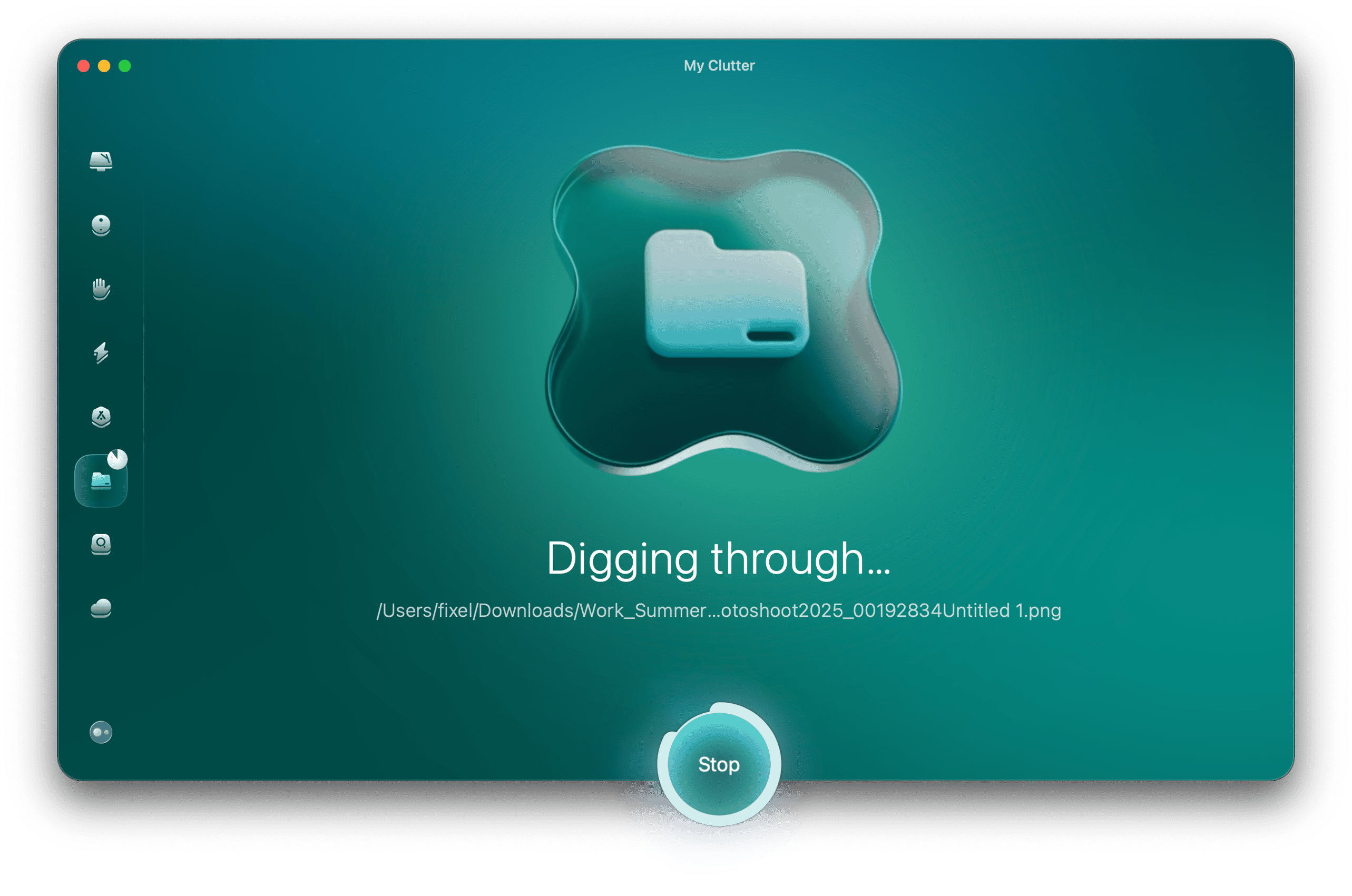
Open the app again and first click My Clutter > Scan.
-
Sort through the categories and remove items you no longer need.
-
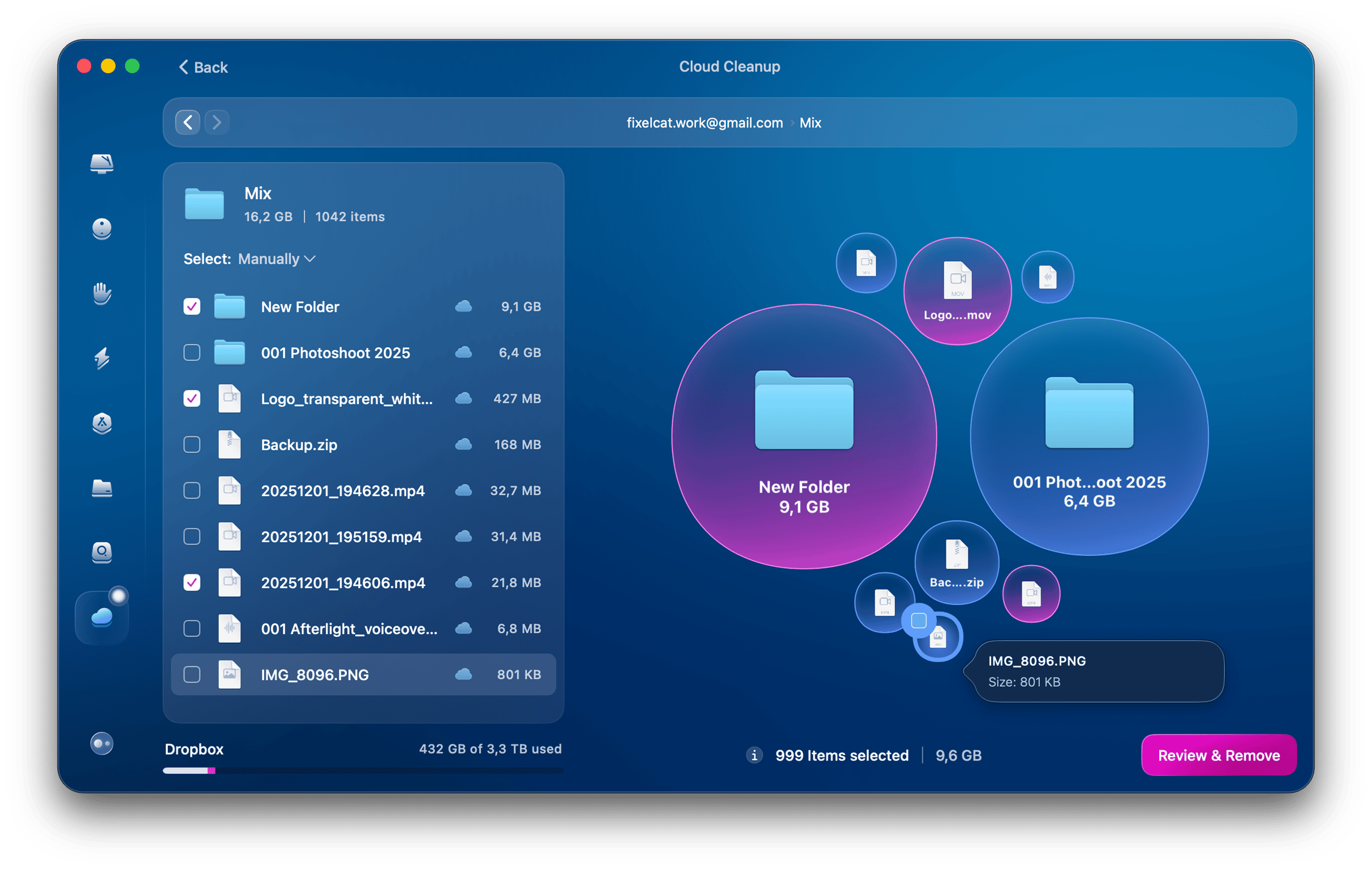
Next up, click Space Lens > Scan.
-
You’ll get a visual overview of all the content-consuming space on your Mac. It’s a great way to see where big files are hiding. Again, remove what you no longer need.


Browser cleanup: Safari not downloading files on Mac
Cleaning up your browser can help solve the issue of your Mac not downloading files.
To clear all data:
-
Open Safari > Click the Safari menu > Settings > Privacy > Manage Website Data > Remove All.
Reset your download location:
-
Safari menu > Settings > General > File download location. Pick Downloads or a local folder on your internal drive.
Chrome
Clear cache in Chrome:
-
From your Chrome menu, go to Settings > Privacy and security.
-
Click Delete browsing data and select cached images and files and cookies.
-
Hit Delete data.
Next, check your saved download path:
-
From the Chrome menu again > Settings > Downloads > Location.
-
Double-check where it’s pointed to.
Disable extensions temporarily:
-
Visit chrome://extensions.
-
Turn off any download managers, ad blockers, or security add-ons and retry your download again.
Firefox
Clear your cache:
-
Firefox menu > Preferences > Privacy & Security > Cookies and Site Data.
-
Click Clear browsing data.
Check your downloads:
-
Firefox menu > Settings > General > Files and Applications.
-
Check Save files to.
One more thing
If a browser says “download complete” but you cannot find the file, look in the browser’s Downloads list and click Show in Finder. Also check ~/Downloads and Desktop.
To avoid clicking through three browsers, use CleanMyMac > Protection > Manage Privacy Items > Privacy to clear caches, cookies, and history across Safari, Chrome, and Firefox in one pass. Then, relaunch the browser and try again.

Check your system permissions and security settings
Ok, these final troubleshooting tips should fix any remaining iCloud download issues on Mac.
1. Allow trusted developers
-
In System Settings > Privacy & Security > Security.
-
Make sure you have toggled on Allow applications downloaded from App Store and identified developers.

2. Firewall and antivirus check
-
Back in System Settings > Network > Firewall.
-
If a third-party firewall or antivirus is installed, temporarily disable it and retry the download.

3. Check Screen Time limits
-
Once again, System Settings > Screen Time.
-
Check Content & Privacy Restrictions and App Limits in case certain file types or sites are blocked.
4. The quick restart
-
Quit all apps and restart your Mac.
-
Retry the download first in Safari, then in your second browser. This clears temp locks on the Downloads folder and resets stuck network agents.
So, that’s it, you now know why my Mac is not downloading files on Chrome and other popular browsers.