

Remote Mac access: Your 5-minute setup guide to prevent
If you think someone might have remote access to your Mac, first up, don’t panic. This article breaks down all the need-to-knows into clear, actionable steps to identify and stop intruders and lock the doors to your Mac for good. So let’s get started.
Red flags: Symptoms of unauthorized remote Mac access
Obvious signals
-
Your cursor moves on its own or windows and apps launch.
-
Password prompts that you didn’t trigger appear.
-
Some of your accounts are unexpectedly signed out.
-
The fans on your Mac surge when idle.
Subtle signals
-
A notification reads “Your screen is being observed” near the menu bar or in Control Center.
-
Security pop-ups asking for Accessibility or Screen Recording access for an app you do not recognize.
Hidden signals
-
Firewall has been turned off, and you did not do it.
-
Remote services are enabled in Sharing.
-
Login Items you never installed.
Diagnostic checklist: How to verify an intrusion
Ok, so if you want to know how to tell if your Mac has been remotely accessed, this is my diagnostic fail-proof checklist.
-
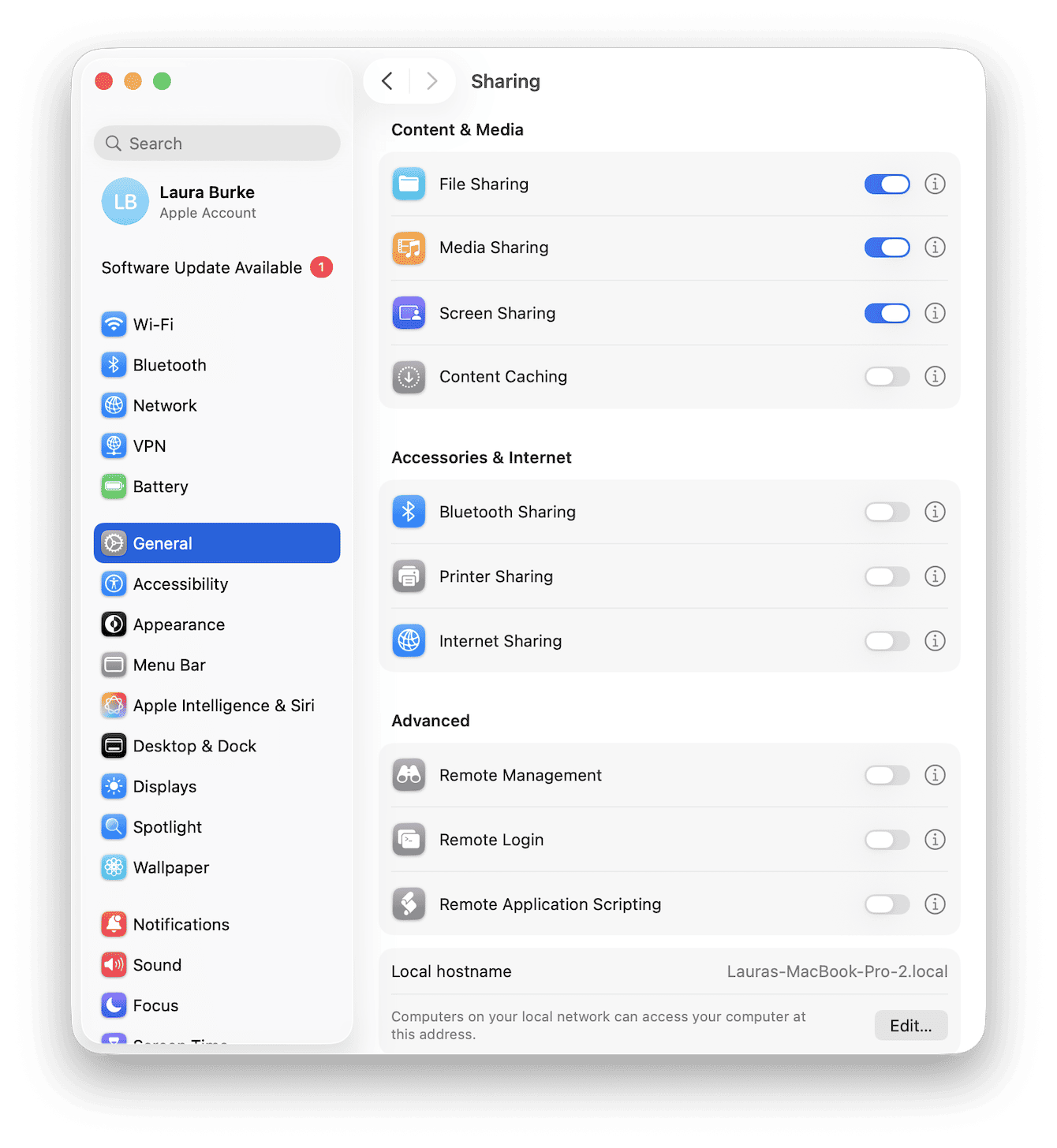
Go to your System Settings > General > Sharing.
-
Make sure the following items are toggled off (unless you are intentionally using them):
Screen Sharing
Remote Management
Remote Login
-
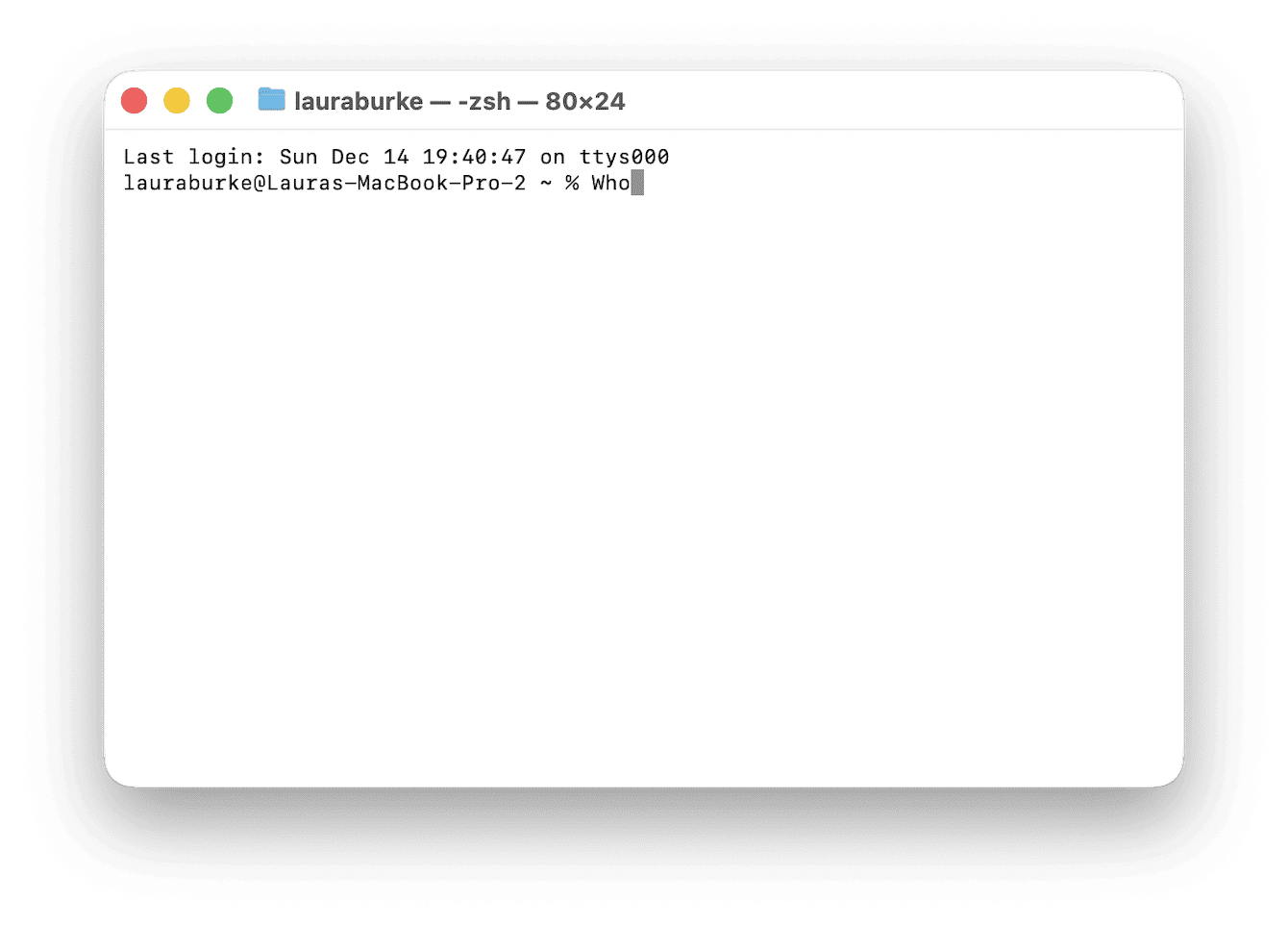
Next, open Terminal using Spotlight search and type in the following command, pressing Return to run it: Who
-
If you see active sessions you do not expect, note the user and time.
-
Next, open Activity Monitor from your Applications > Utilities folder. Under the CPU and Network tabs, sort by % CPU or Bytes Sent. Look for remote tools or heavy traffic you cannot explain, like these items:
-
Apple built-in: screensharingd, remotemanagementd, ARDAgent, sshd.
-
Common remote tools: AnyDesk, TeamViewer, LogMeIn, RustDesk, Splashtop
-
Odd helpers with microphone, camera, or screen names you did not install

If you’re not comfortable diagnosing remote Mac access on your own, I can highly recommend a tool like CleanMyMac to speed up the process for you; here’s how:
-
Test the app free for seven days — get your free trial here.
-
Open and click Performance > Scan > View All Tasks.
-
Review Login Items and Background Applications. Disable anything you do not recognize so it cannot auto-start while you investigate.

The emergency protocol: How to cut off access immediately
So, if using the diagnostic tips above, you did find suspicious remote Mac access activity, it’s time to act fast.
Step one: The kill switch
Turn off Wi-Fi from the menu or pull the Ethernet cable. If needed, power off the router for one minute. This stops live control immediately.

Step two: Reset your credentials
-
You’ll need to change all your passwords, but this can’t be done on your compromised Mac, because keyloggers might be watching nd waiting. So, using another device like an iPhone or iPad, change all your passwords, including:
- Apple Account (aka Apple ID)
- Email
- Admin account passwords.
-
If two-factor is off on any of your accounts, turn it on now.
Step three: Revoking permissions
-
On your Mac, go to System Settings > Privacy & Security and toggle off any app you did not explicitly approve in these locations:
-
Accessibility
-
Screen & System Audio Recording
-
Full Disk Access
-
Input Monitoring

Remove remote Mac access leftover tools
The tips above will kill the session and stop control, but they won’t remove what gave someone access in the first place. Attackers rely on three things:
-
A remote-access app you installed (often “for support”)
-
Hidden launch items that relaunch it
-
Permissions that allow screen, mic, or disk access.
1. Check for malware
You’ll need to check your Mac urgently for malware, use CleanMyMac. Its Moonlock Engine-powered Protection feature checks deep system locations most people never see or find, hidden app-support folders, browser extensions, and login items, for known signatures and suspicious behaviors used by remote-control kits, miners, trojans, and stalkerware.
-
Open CleanMyMac (get your free trial here) > Protection and click Scan.
-
Follow any on-screen prompts.

2. Remove unknown apps
If a remote-access tool (AnyDesk, TeamViewer, RustDesk, etc.) or any unknown utility appears in your audit, don’t drag it to Trash. You need to make sure all leftovers are eradicated, too; here’s how:
-
Go to CleanMyMac > Applications > Scan > Manage My Applications > Uninstaller.
-
Find the app, click the dropdown next to its name to reveal helpers, launch agents, caches, containers, preferences, and other traces. Select the app plus all related items and click Uninstall.

Preventing future attacks
Ok, so you know how to tell if your Mac has been remotely accessed, but prevention here is key.
1. Turn on the guards
-
Firewall: System Settings > Network > Firewall > On.
-
FileVault: System Settings > Privacy & Security > FileVault > Turn On to protect data at rest.

2. Stay updated
-
System Settings > General > Software Update. Enable automatic updates. Apple’s built-in protections like Gatekeeper and XProtect improve with updates.

3. Protect your router
- Change the router admin password.
- Disable remote router management.
- Update router firmware if a newer version is available.
4. iCloud security
- Turn on two-factor for Apple Account.
- Review Devices in your Apple Account panel. Remove anything you do not recognize.
Now you know how to handle remote Mac access.